
Lipstick Product Photos
for Your Beauty Store
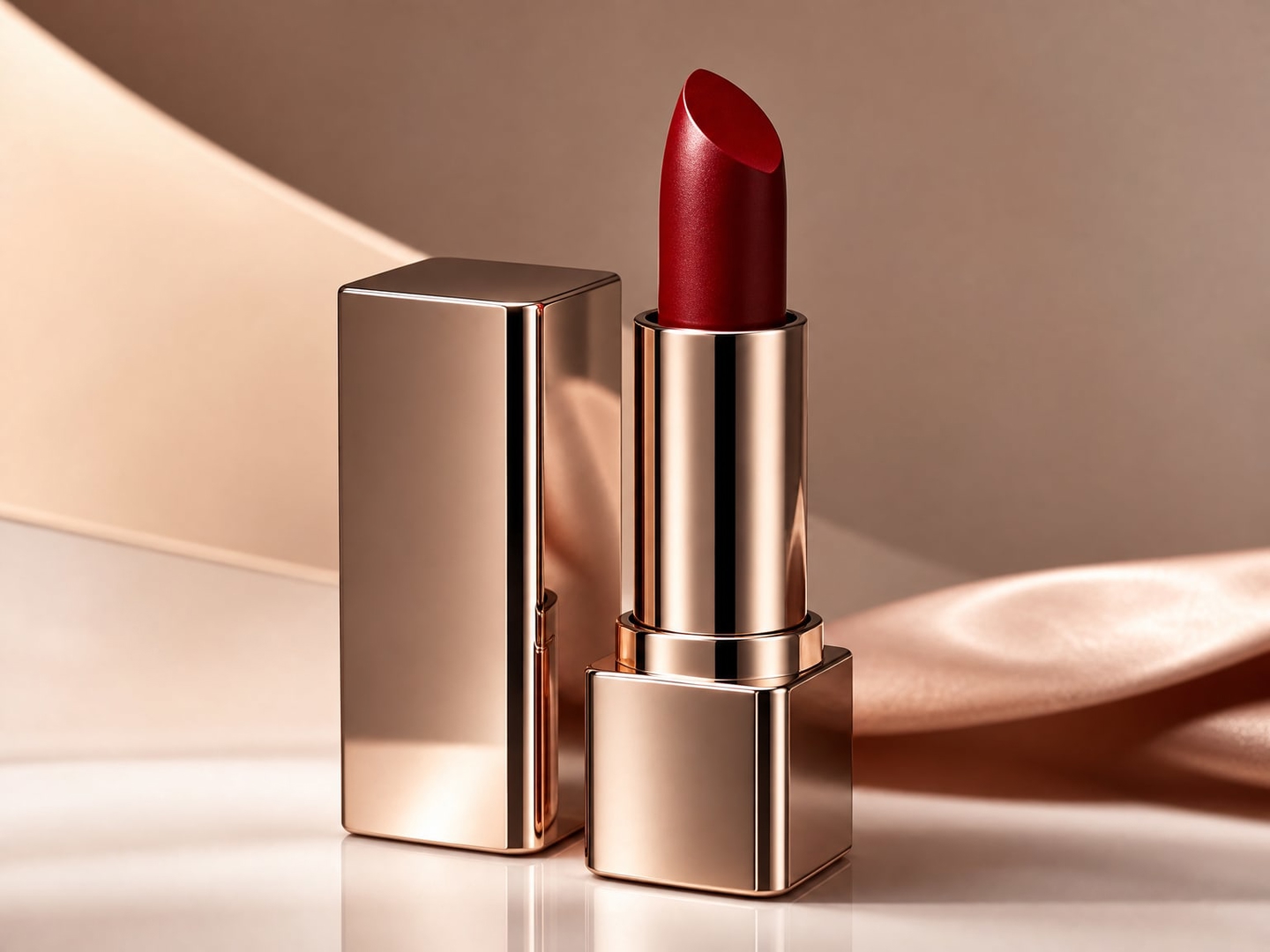
Upload a photo of your lipstick and choose a backdrop and a light. The Studio Shot workflow uses your photo as the reference for the shade, the case and the label, and places it on the backdrop you picked.

How can I make lipstick product photos with AI?
Upload one to four photos of your lipstick to Photta’s Studio Shot workflow, choose a backdrop and light, and get studio images using the shade, case and label as references. Choose white for marketplace listings, pastel or gradient for a brand look, or dark for a premium line; each run makes two images by default, with 2K or 4K, shape and image-count settings. For beauty stores, it supports individual products, shade ranges, launch posts and gift sets.
How to make a lipstick product photo

Upload your lipstick
Add one to four photos: the bullet raised, the case closed, a swatch if you have one. Daylight near a window is enough; keep the label facing the camera.

Choose the backdrop and light
White suits marketplace listings, pastel and gradient suit a brand look, dark suits a premium line. Soft light keeps the finish even; dramatic light brings out a metallic case.

Generate and choose
Each run makes two images by default. In the settings you can change the shape, choose 2K or 4K and set how many images you want; the cost is shown before you generate.
Lihat ia beraksi
Four things shoppers look at before they choose a shade.
What makes a lipstick photo work
Open the tool
A shade that reads true
Colour is why someone buys a lipstick. Photograph it in daylight, keep coloured walls out of the reflection and compare the result with the real bullet before you publish.
Get Started Free
Bullet and case together
Show the bullet raised with the case beside it, so the finish and the packaging are both clear. Upload both photos in the same run.
Try It Now
A backdrop for each channel
White for marketplace listings, pastel or gradient for your own store and social posts, dark for a limited or premium line.
Explore Features
Use Cases
Lipstick photos you can make

Marketplace main image
One lipstick on white, centred and sharp, for the first image of a listing.

Shade range
Every shade on the same backdrop and light, for a collection grid.

Open and closed
The bullet raised next to its closed case, so both the finish and the packaging show.

Launch post
A new shade on a pastel or gradient backdrop for Instagram or TikTok.

Premium line
A dark backdrop and dramatic light for a metallic or limited-edition case.

Gift set
Up to four lipsticks from one line in a single studio shot.
Your next shoot starts here.
Upload your product. Start creating photos, videos and ads that feel like your brand.
- 20 free credits
- No credit card required
- Cancel anytime


